Montreal Code Camp – WOW!

I am writing this article on my way back returning from Montreal Code Camp. This event was held today (May 30, 2009). It has been, IMHO, a complete success! There were great presenters and I found the concept behind the various presentations: 40 minutes each. Since presenters do not have to dig a lot into their subject, I think that it allowed more sessions and provided insights on new technologies. This was a bit frustrating for us, speakers because usually our presentations are made for 75-90 minutes sessions. We had to cut corners and adjust our presentations.

I have been lucky to present at 8:30 AM so I had the whole day to enjoy all other presentations. One of them was particular: how to optimize our reading speed by Mathieu Tanguay. This one was I think very well appreciated by attendees. That said, all presentations I attended were very well done.

Vancouver DevTeach is next on my schedule! I have to refine and optimize my presentations for this event. I'll update this blog while being there for sure!

Christian

Speaking at Montreal code camp on May 30st

I will be speaking at Montreal code camp next weekend. The code camp focus on best practices. I will do an early session on best practices on deploying database using Microsoft Visual Studio Team System for Database Professionals (VSTS4DBP). In brief, I will talk about :
– Bringing the database into VSTS4DBP
– Manage and deploy DB versions
– Unit test DB deployment
Check out the complete schedule at :
http://www.codecampmontreal.com
Hope to see you there!

Presentations material

Here are my powerpoint presentations in PDF format used to speak about Visual Studio Team System for Database Professional 2008. I used it while giving the following presentations:

Here the skydrive link for the file.


Also, I gave an SSIS presentation earlier this year:

Here the skydrive link for the file.

I intend to post other presentation material such as solution source files for VSTS4DBP pretty soon, stay tuned!

SSIS configuration wizard gotcha

In all my applications, I use SQL Server configurations coupled with one indirect configuration. The latter brings me connection string for a connection manager which, in turn, enables my packages to use SQL Server configurations. This is what I call "hybrid" configuration.

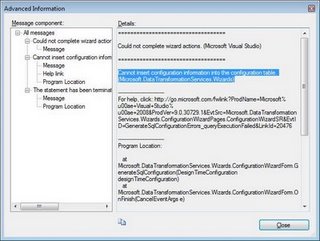
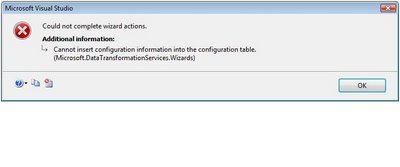
A couple weeks ago, I ran into the following problem. I was trying to enter a connection string for a connection manager into my SSIS configuration table and I had this error message:

Clicking on the show technical details icon (rightmost icon at bottom of the error window), led me to this screen:

I highlighted the problem. Basically, the message tells me that the value to be inserted is too long. By default, SSIS creates a configuration table with NVARCHAR(255) columns. The problem I was facing is that when SSIS configures a connection manager connection string, it appends the application name to the connection string. So, my problem was that SSIS tried to insert a value that was longer than 255 characters into the configured value column. In order to get rid of the error, I had two choices:

  1. Make the configured value column larger than 255 characters.
  2. Remove the application name from the connection string

The application name is an optional parameter that is added to the connection string by SSIS connection manager. It looks like this:

"Application Name=SSIS-StgTemplate-{EE44D17C-AD8C-48E5-B8EB-8197272EE4C0}.\DEV2008.StgDb;"

It is useful when you want to trace SQL connections and distinguish among all active connections on your server. Since the application's name is, for me, superfluous information (I am not running concurrent ETL applications and most of the time, they run on a dedicated server), I decided to use the option #2 and my problem was resolved!

Devteach/SQLTeach conference: fantastic training opportunity

Last week, I had the chance to present at DevTeach/SQLTeach in Montreal. My presentation was on deployment and  testing of a database project using Visual Studio Team System for Database Professional (VSTS4DBP). It went well and I think that several attendees learned how powerful VSTS4DBP can be. It was a level 300 session but I personally think that it could have been rated level 400 session.

I attended several one-two days conferences in the past but nothing surpasses the level of learning opportunity like DevTeach/SQLTeach. Three days there worth lot more than three single days conferences that we can attend at product launch for example. There are many session hat cover a wide range of technologies. The ratio attendee/speaker is very low compared to other conferences like PDC, Tech-Ed, etc. Most of the time, the speaker is always available for questions or discussions even after its scheduled session. In short, DevTeach/SQLTeach is lke three full days of training with skilled speakers that present products used in real life situation.

Its worth mentioning that the DevTeach party was very fun too! 🙂

Hope to see you at future DevTeach/SQLTeach conferences whether it would be in Montreal, Toronto or Vancouver!

Data driven VSTS4DBP unit tests

Unit testing a database deployment with DBpro can be very valuable. You can always assess whether the new deployment of the database objects has break existing code or functionality. Also, it can be used as a proof that specific database objects have been properly deployed.

Why data driven DB unit test

One of the caveat that can arise when building database unit tests is that the result value of a specific test may be hard coded into it. Let's say that one of the tests verify that an existing contact exists in the contact table.image
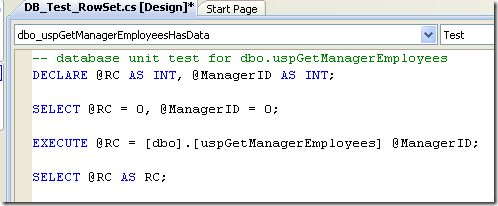
As shown in the picture above, you have to supply a value for the "@ManagerID" parameter. For now, its value is 0. The unit test verify that a resultset is returned by the stored procedure. So, for a specific "@ManagerID", one or more rows shoud be found in the database and returned by the stored procedure.

image

Now if we need to test several manager's IDs, we might then need to create as many unit tests as necessary. Or, we might have to open the unit test and change the "@ManagerID" parameter's value. This is not an efficient way to unit test our uspGetManagerEmployees stored procedure. By using data driven unit testing, a single test is created and get reused for every contact that you want to test.


Create necessary tables

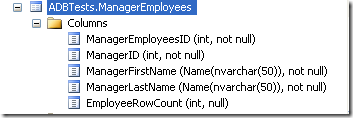
The basis of data driven unit test is that for a specific test (or bunch of tests within the same test project), a table or data source is available. For the test created above, I created a schema called ADBTest and a specific table for it that I called ManagerEmployees.
image

This table contains the following data:

image

Column Description
ManagerEmployeeID Primary key of the table.
ManagerID Column that will be used as a parameter (@ManagerID) the store procedure dbo.uspGetManagerEmployees.
ManagerFirstName Column that will be used in the unit test to better describe the row being tested in the test result.
ManagerLastName Column that will be used in the unit test to better describe the row being tested in the test result.
EmployeeRowCount Column that will be used for the row count unit test.


Unit test data properties

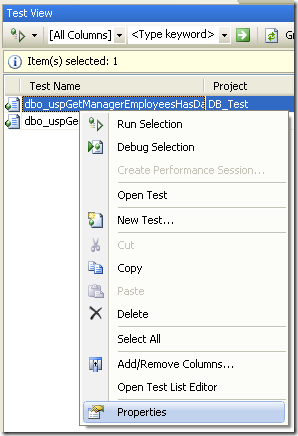
In order to bind a specific test to the ADBTest.ManagerEmployees table, we need to initialize several properties of each unit tests. In order to to it, we use the testview window in visual studio:
image

In the properties windows, we then select data connection string:

image

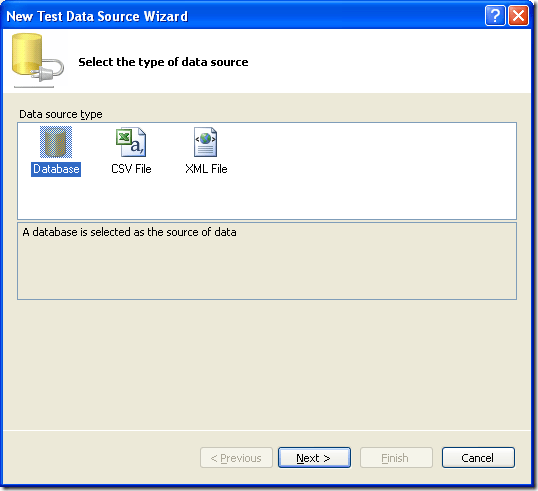
The data source wizard appears:

image

By selecting "Database" the following screen appears:
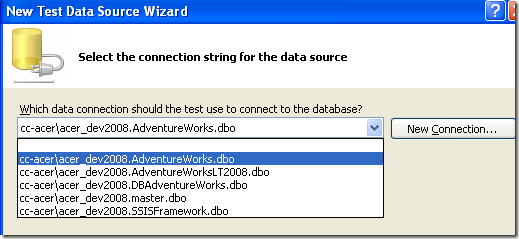
image

Here, I select the database where my table is located. Then, o the next screen, I choose ADBTest.ManagerEmployees table:
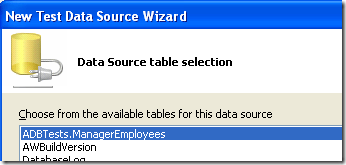
image

When the "Finish" button is pressed, the test properties windows looks like this:

image

Unit test code modifications

Bow that the tables where resides the unit test data is selected, we need to make slight modifications to the unit test code. By right-clicking our unit test in the solution explorer and select "VIew code", the code of the unit test class appears. The following modifications have to be made for the row count test:

public void dbo_uspGetManagerEmployeesRowCnt()
       {
           DatabaseTestActions testActions = this.dbo_uspGetManagerEmployeesRowCntData;
           // Execute the pre-test script
           //

          //Set the rowcount condition with the database value
           RowCountCondition cond1 =
           (RowCountCondition)testActions.TestAction.Conditions[0];
           cond1.RowCount =
           Convert.ToInt32(TestContext.DataRow["EmployeeRowCount"].ToString());
           //Set the manager parameter
           DbParameter p = this.ExecutionContext.Provider.CreateParameter();
           p.Direction = ParameterDirection.Input;
           p.ParameterName = "@ManagerID";
           p.Value = TestContext.DataRow["ManagerID"];
           System.Diagnostics.Trace.WriteLine("Row count test for : " + TestContext.DataRow["ManagerFirstName"] + " " + TestContext.DataRow["ManagerLastName"]);

The first thing we need to do is to create a condition for our test: cond1. This variable will hold the row count value that we want to compare with the test execution row count:

           RowCountCondition cond1 =
           (RowCountCondition)testActions.TestAction.Conditions[0];

Then, we initialize it with the EmployeeRowCount value found in the ADBTest,ManagerEmployees table:

           cond1.RowCount =
           Convert.ToInt32(TestContext.DataRow["EmployeeRowCount"].ToString());

Nest, we define a parameter: p. It will contain the parameter name as well as the manager ID:

DbParameter p = this.ExecutionContext.Provider.CreateParameter(); 
p.Direction = ParameterDirection.Input; 
p.ParameterName = "@ManagerID"; 
p.Value = TestContext.DataRow["ManagerID"];

Then,we tell the unit test class to output a line telling us which "@ManagerID" has been tested:

System.Diagnostics.Trace.WriteLine("Test for @ManagerID: " + p.Value + " (" + TestContext.DataRow["ManagerFirstName"] + " " + TestContext.DataRow["ManagerLastName"] + ")");

This way, we can see the following information in the test results window:

image

This tells us that the stored procedure parameter (@ManagerID) used was 158, which is the ID of Dylan Miller. This line of code enable the unit test to document itself.


The last code modification we need to make is to modify the test's execution line:

ExecutionResult[] testResults = TestService.Execute(this.ExecutionContext, this.PrivilegedContext, testActions.TestAction,p);

The parameter p has been added at the end of the command line.

With these small changes, our unit test can now execute as many time as there are data in our ADBTest.ManagerEmployee table!

Test designer modifications

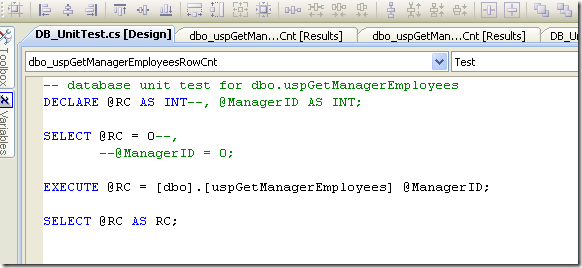
The last changes we need to make to properly run the unit test is to comment out (or remove) the following code in the test designer:
image

As you can see in the image above, the @ManagerID as been commented out in both declaration and initialization lines. If we do not comment or remove designer<s references to the variable, the test would fail complaining that the variable is declared twice.

Running the data driven unit test

Now, we can execute the DUT. We can launch it directly from the designer or by using Visual Studio Test View to run only this unit test if you have created many in the same project.


Summary

This article demonstrated how Visual Studio for Database Professional unit tests can be driven by a data source. Doing this can add tremendous flexibility to your database deployment.

Speaking at DevTeach/SQLTeach on December 3rd

I will do a presentation on Visual Studio for Database Professional at Montreal DevTeach/SQLTeach. The focus will be on the various way we can achieve the deployment of database using VSTS4DBP a.k.a. Datadude.


Also, there is a great offer for DevTeach/SQLTeach attendees. They will all receive a  free copy of Visual Studio 2008 professional, Web ExpressionTM 2 and Tech-Ed DVD. This bundle of software has a retail value of about 1000$. So, considering this, the cost to attend at DevTeach/SQLTeach is pretty cheap for three days of great presentations!

Don't miss it!

Devteach web site

VSTS4DBP deployment using MSBuild

Deploying a database project to multiple environments can be challenging. Especially when all target machines are not equal; that is, their files are not stored in the same folder, the various database or server objects differ.

Visual Studio provides essential features that makes deployment works like a breeze: configurations and MSBuild.

One configuration for each environment (DEV, Test, Production)

By using Visual Studio configuration manager, you can define specific configurations for your solution. Simply right-click on your solution and select "Configuration manager" from the contextual menu.

Once Configuration Manager is displayed, you can see that two default configurations are created:
– Debug: this is the default configuration
– Release: this configuration is (or can be) used for deployment of VS projects

Configurations used for database deployment may be different than those used for software deployment. Simply create as configurations as necessary. For example, in my solutions, I always a configuration named "Development" for my own machine, "Test" for test server and "Production" for the production server.

<Add configuration manager picture>

image

Once configurations are defined, we can set my DBPro project accordingly.

Some files contain project's properties. They are located just below the project:

image

If we bring the project's properties screen (right-click project and select properties), we can create or update files as needed by the selected configuration. A properties file can be used by several configurations.
for different server and database objects. 

Name Description Project's properties usage
Database.sqlcmdvars Contains SQLCMD variables. Deploy tab
Database.sqldeployment Contains deployment specific parameters like whether or not the database should always be re-created, if we want the database to be backed-up before deployment, etc. Deploy tab
Database.sqlpermissions Contains specific Grant or Deny options on database objects.
Database.sqlsettings Contains information's on database settings like database collation, recovery model, etc. Project settings tab

Deploying the project

MSBuild enables us to deploy the project by using the command line. To be able to use MSBuild easily, open the visual studio command prompt from the start menu–> Visual Studio 2008:

image

Here is a common syntax that can be used to deploy a database project:

MsBuild <database project> /t:Build

So, the resulting command line is:

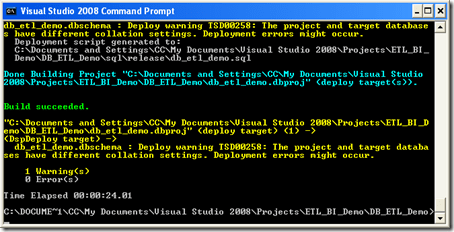
MsBuild DB_ETL_DEMO.dbproj /t:Build

image

Now the project has beeen built. A DB_ETL_DEMO.dbschema file has been created. We can now deploy the dbschema file to our target database. The command line syntax is:

MsBuild DB_ETL_DEMO.dbproj /t:Deploy /p:Configuration="Test"
image

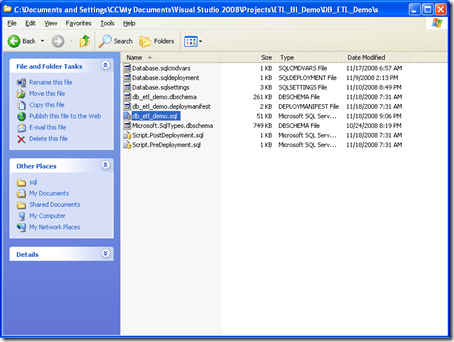
The file db_etl_demo.sql is now created in the test folder of my project:

image

Find out more MSBuild command line options

Refer to "An Overview of Database Build and Deployment" in DBPro documentation. It contain lots of sample to use MSBuild in conjunction with DBPro.

Summary

This article demonstrated how a database project can be deployed using Visual Studio configurations and MSBuild command line. MSBuild is installed by Visual Studio and is very convenient when DBPro projects have to be deployed to servers or machine where the database does not have similar setup. Also, since this is a command line tool, it can be wrapped into a scheduled task in order to automate database deployment at specific intervals. In another article, I will talk about TFSBuild, the build feature that comes with Team Foundation Server.

Labels:

VSDBCMD.exe part 2

Recently, I blogged about the new VSTS4DBP 2008 GDR command line utility. In this post, I will dig into the "how to use" the utility.

Prerequisites

To be able to use the utility, we need to copy some files to a folder:
C:\Program Files\Microsoft Visual Studio 9.0\VSTSDB\Deploy:
– VSDBCMD.exe
– DatabaseSchemaProviders.Extension.xml
– Microsoft.Data.Schema.dll
– Microsoft.Data.Schema.ScriptDom.dll
– Microsoft.Data.Schema.ScriptDom.Sql.dll
– Microsoft.Data.Sql.dll
– Microsoft.SqlServer.BatchParser.dll

C:\Program Files\Microsoft SqlServer Compact Edition\V3.5:
– Sqlceer35en.dll
– Sqlcecme35.dll
– Sqlceqp35.dll
– Sqlcecs35.dll 

C:\Program Files\Microsoft Sql Server Compact Edition\V3.5\Desktop:
– System.Data.SqlServerCe.dll

These files can be copied on the target machine or a thumb drive. They must be in the same folder in order to properly use VSDBCMD. In my directory, I created a folder “ImportedSchemas”. It will contain all my .dbschema files:image

Reverse engineer an existing database

Before we reverse engineer our target database, we will make some changes to its structure. Let's rename the FirstName column to First_Name in Staging.Stg_Customers table.

image

The VSDBCMD term for database reverse engineer is import. So, the option we use at command line is /a:Import.
image

This command generate a file called ImportedSchemas\MyTarget.dbschma. This the offline representation of the target database on the machine where the VSDBCMD utility has been executed:image
Now, using this file, we are able to compare it with our database project. We simply call the schema compare tool from the data menu and set the screen as this:
image

After the schema comparison, we get the following result:
image

The comparison tells that the target database Stg_Customers differ by one column; exactly the one we changed before generating our MyTarget.dbschema file!

Deploying our database project

Database project can be deployed using VSDBCMD by using two similar command line option.

  • Generate a script that can be reviewed before executing it against the target database. This gives us a .SQL file that can be specidically named using the /DeploymentScriptFile option. To generate the script we use the /deploy option:
    image 
  • Generate a script and directly deploy the target database. This gives us a script that can be version controlled and immediatly deployed to the database. To do it, we use the /deploy and /dd option:
    image

Summary

This article demonstrated how the new VSDBCMD utility can be used to import or deploy a database. It is very useful when you want to compare a database against your database (DBPro) project or deploy it without using Visual Studio.

Blog at WordPress.com.

Up ↑