Unit testing a database deployment with DBpro can be very valuable. You can always assess whether the new deployment of the database objects has break existing code or functionality. Also, it can be used as a proof that specific database objects have been properly deployed.
Why data driven DB unit test
One of the caveat that can arise when building database unit tests is that the result value of a specific test may be hard coded into it. Let's say that one of the tests verify that an existing contact exists in the contact table.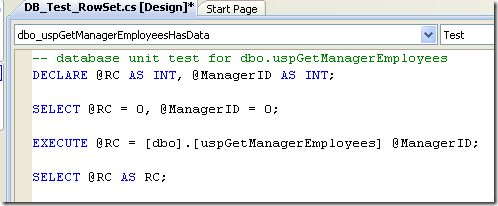
As shown in the picture above, you have to supply a value for the "@ManagerID" parameter. For now, its value is 0. The unit test verify that a resultset is returned by the stored procedure. So, for a specific "@ManagerID", one or more rows shoud be found in the database and returned by the stored procedure.

Now if we need to test several manager's IDs, we might then need to create as many unit tests as necessary. Or, we might have to open the unit test and change the "@ManagerID" parameter's value. This is not an efficient way to unit test our uspGetManagerEmployees stored procedure. By using data driven unit testing, a single test is created and get reused for every contact that you want to test.
Create necessary tables
The basis of data driven unit test is that for a specific test (or bunch of tests within the same test project), a table or data source is available. For the test created above, I created a schema called ADBTest and a specific table for it that I called ManagerEmployees.
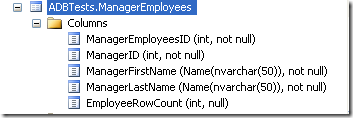
This table contains the following data:

| Column |
Description |
| ManagerEmployeeID |
Primary key of the table. |
| ManagerID |
Column that will be used as a parameter (@ManagerID) the store procedure dbo.uspGetManagerEmployees. |
| ManagerFirstName |
Column that will be used in the unit test to better describe the row being tested in the test result. |
| ManagerLastName |
Column that will be used in the unit test to better describe the row being tested in the test result. |
| EmployeeRowCount |
Column that will be used for the row count unit test. |
Unit test data properties
In order to bind a specific test to the ADBTest.ManagerEmployees table, we need to initialize several properties of each unit tests. In order to to it, we use the testview window in visual studio:
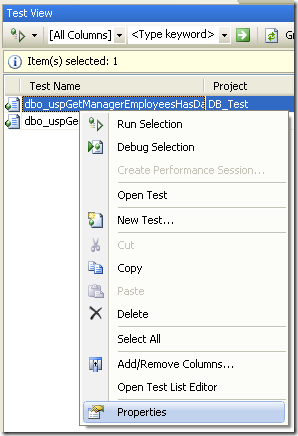
In the properties windows, we then select data connection string:

The data source wizard appears:
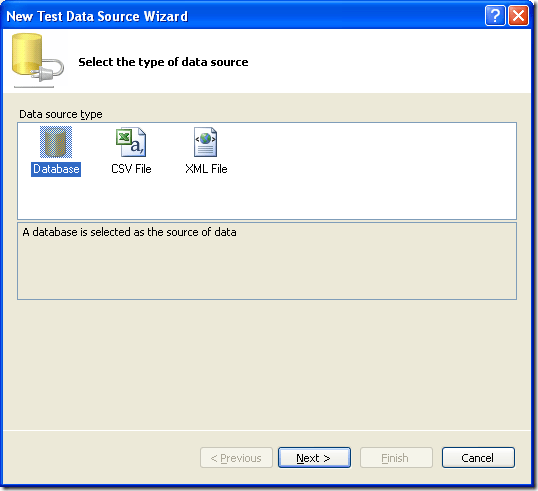
By selecting "Database" the following screen appears:
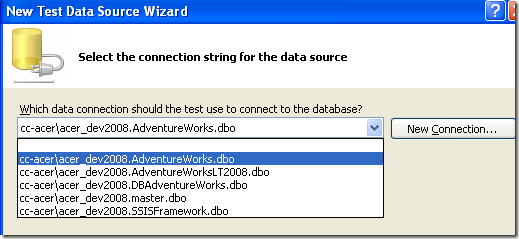
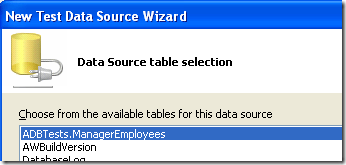
Here, I select the database where my table is located. Then, o the next screen, I choose ADBTest.ManagerEmployees table:
When the "Finish" button is pressed, the test properties windows looks like this:

Unit test code modifications
Bow that the tables where resides the unit test data is selected, we need to make slight modifications to the unit test code. By right-clicking our unit test in the solution explorer and select "VIew code", the code of the unit test class appears. The following modifications have to be made for the row count test:
public void dbo_uspGetManagerEmployeesRowCnt()
{
DatabaseTestActions testActions = this.dbo_uspGetManagerEmployeesRowCntData;
// Execute the pre-test script
//
//Set the rowcount condition with the database value
RowCountCondition cond1 =
(RowCountCondition)testActions.TestAction.Conditions[0];
cond1.RowCount =
Convert.ToInt32(TestContext.DataRow["EmployeeRowCount"].ToString());
//Set the manager parameter
DbParameter p = this.ExecutionContext.Provider.CreateParameter();
p.Direction = ParameterDirection.Input;
p.ParameterName = "@ManagerID";
p.Value = TestContext.DataRow["ManagerID"];
System.Diagnostics.Trace.WriteLine("Row count test for : " + TestContext.DataRow["ManagerFirstName"] + " " + TestContext.DataRow["ManagerLastName"]);
…
The first thing we need to do is to create a condition for our test: cond1. This variable will hold the row count value that we want to compare with the test execution row count:
RowCountCondition cond1 =
(RowCountCondition)testActions.TestAction.Conditions[0];
Then, we initialize it with the EmployeeRowCount value found in the ADBTest,ManagerEmployees table:
cond1.RowCount =
Convert.ToInt32(TestContext.DataRow["EmployeeRowCount"].ToString());
Nest, we define a parameter: p. It will contain the parameter name as well as the manager ID:
DbParameter p = this.ExecutionContext.Provider.CreateParameter();
p.Direction = ParameterDirection.Input;
p.ParameterName = "@ManagerID";
p.Value = TestContext.DataRow["ManagerID"];
Then,we tell the unit test class to output a line telling us which "@ManagerID" has been tested:
System.Diagnostics.Trace.WriteLine("Test for @ManagerID: " + p.Value + " (" + TestContext.DataRow["ManagerFirstName"] + " " + TestContext.DataRow["ManagerLastName"] + ")");
This way, we can see the following information in the test results window:

This tells us that the stored procedure parameter (@ManagerID) used was 158, which is the ID of Dylan Miller. This line of code enable the unit test to document itself.
The last code modification we need to make is to modify the test's execution line:
ExecutionResult[] testResults = TestService.Execute(this.ExecutionContext, this.PrivilegedContext, testActions.TestAction,p);
The parameter p has been added at the end of the command line.
With these small changes, our unit test can now execute as many time as there are data in our ADBTest.ManagerEmployee table!
Test designer modifications
The last changes we need to make to properly run the unit test is to comment out (or remove) the following code in the test designer:
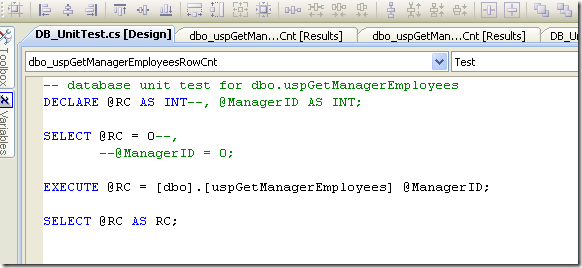
As you can see in the image above, the @ManagerID as been commented out in both declaration and initialization lines. If we do not comment or remove designer<s references to the variable, the test would fail complaining that the variable is declared twice.
Running the data driven unit test
Now, we can execute the DUT. We can launch it directly from the designer or by using Visual Studio Test View to run only this unit test if you have created many in the same project.
Summary
This article demonstrated how Visual Studio for Database Professional unit tests can be driven by a data source. Doing this can add tremendous flexibility to your database deployment.


 ETL/BI-blogger