Data Platform MVP 2016

Je suis fier et honoré d'avoir reçu mon renouvellement comme Microsoft Most Valuable Professional (MVP) pour une 8e année consécutive. Depuis 2009, j'ai le plaisir de faire partie d'une communauté qui aide à améliorer les produits Data Platform de Microsoft tout en étant très généreux dans le partage des connaissance avec leurs pairs ainsi qu'avec la communauté de développeurs au travers le mode. J'espère faire partie de cette communauté pour plusieurs années encore!

I'm glad and honoured to be awarded a Data Platform Microsoft Most Valuable (MVP) for another year. Since 2009, eight years now, I have the pleasure to be part of a community that help shaping MIcrosoft Data Platform products as well as being very generous in their involvment with their colleagues MVP's and the worldwide development community. Hop to be part of it for a long time!

Assistez au 24HOP du groupe virtuel PASS francophone

Je me joins à Isabelle Van Campenhoudt (@isabellevancampenhoudt) pour vous convier au premier 24 HOP (hour of PASS) de notre groupe virtuel francophone. Nous somme fiers d'avoir organisé cet événement. Isabelle et moi avons sélectionné des conférenciers de haut niveau provenant d'un peu partout dans la communauté francophone mondiale. La cédule des présentations étant maintenant disponible, je vous invite à vous inscrire aux présentations qui vous intéressent, c'est gratuit!


Christian Coté

#24HOPfrancophone

Disable SSIS packages from Entry Point packages using expressions

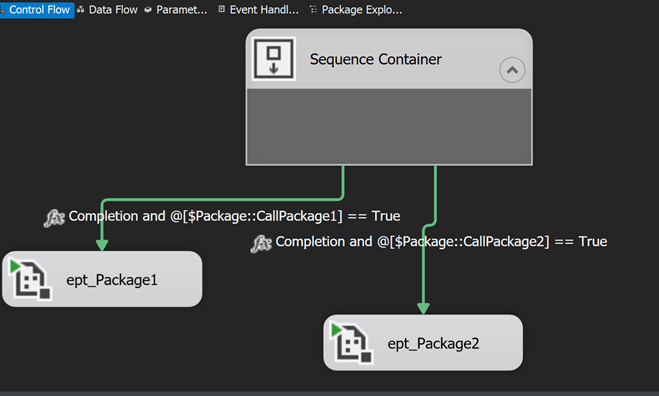
For years I have been controlling how tasks in event handlers or execute package tasks were called using empty sequence containers and expressions. Here is an example of package call I was doing:

My package has a parameter named CallPackage1 as shown in picture below:

The above parameter is then used in the paths precedence constraints expression to determine if the package will be called or not:


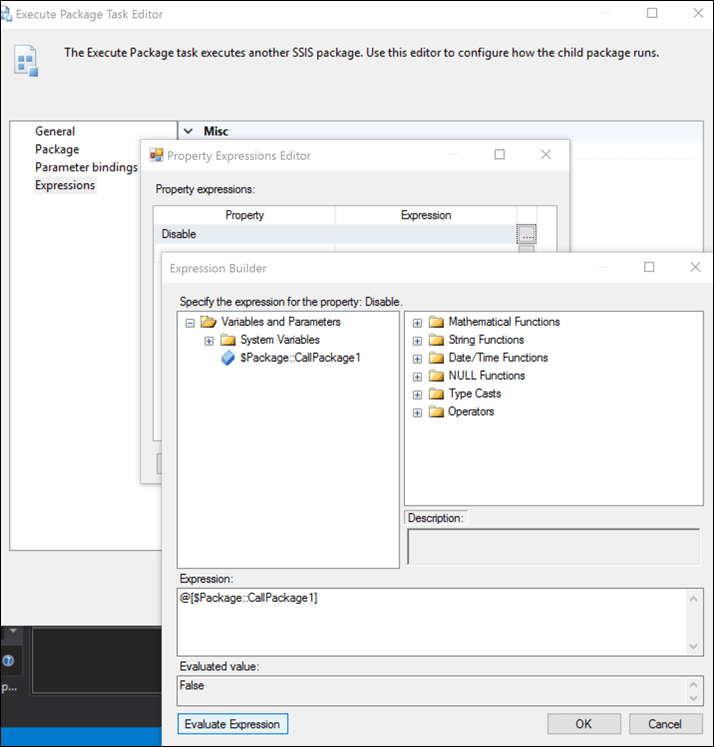
So, whenever the parameter was set, the package would execute or not. Since SSIS 2008, we have the ability to disable the package execution without using a sequence container as illustrated above. We simply set the expression in the “Disable” property of the execute package task as shown in the screenshot below.

The execute package task has now an “adornant” is SSIS 2012 and above telling us that an expression is used. In previous version, we have to install BIDSHelper to see such adornant. Even if we set the parameter “CallPackage1” to true, the execute package will not appear disabled unless we close and reopen the package.

Before package execution:

After the value was change and the package is executed or it has been closed and reopened:


So, what’s the advantage of using Execute Package Task “disable” property instead of having a sequence container above execute package tasks? Using a sequence container leads to clarity. We clearly see that the package is called upon a parameter’s value. When using the Disable expression, it can be harder to see what’s the expression of the task and what is does. But, when we have particularely large entry point packages (master packages – packages that call child packages), it’s easier to use the Disable property expression of the Execute Package Task because having all tasks linked to the sequence container leads to a more noisy control flow. Therefore, it doesn’t enhance package clarity in that case. As Mies van der Rohe said: “Less is More”.

This SQLCMD collation change script saved my day!

I was faced today with a SQL Server collation issue. The new SQL Server instance we had set up was using the wrong collation at both instance and database/tables/columns. This blog post will talk on how I fixed both issues.

Changing instance level collation

This was the easiest task to do. I followed a well documented method that can be found there. Here is the command I used:

Setup /QUIET /ACTION=REBUILDDATABASE /INSTANCENAME=mssqlserver /SQLSYSADMINACCOUNTS=”<MyMachine\SysadminUser>” /SAPWD=<MySysadminPassword> /SQLCOLLATION=Latin1_General_100_CI_AI

As indicated in the command, we’re rebuilding the databases here. We have to use a sysadmin user since we’re modifying the core database of our instance.

Changing the database collation

This is the most challenging part of the process. It’s not enough to change the collation at database level, we have to change all tables/columns/keys/indexes collation to have a complete collation change.

The first technique to use is to clone the database structure and to copy over all the data. One challenge here is to copy data in the right order considering that our database can have complex primary key/ foreign key relationships. We therefore have to proceed at the insertions in the right order. This might be harder when we have a database that has hundreds of tables. This become then a long and tedious task.

Since my time was limited (life is always too short in IT), I had to find a more efficient way of changing the collation of all my databases objects. I did some web searches thinking that I surely not the first one to face this challenge. I did find a script after several web searches that sole my problem. Here is the link to the MSDN article. It is dated to 2006 but collation conversion hasn’t changed much since then.

In short, kudos to Igor, he saved me a lot of time and the script ran under 5 minutes in my case. Since I had to convert 30+ databases, all of them were converted in half a day which was tremendous for me and my client!

Thanks again Igor!


Azure Data Factory book on Kindle

I’m glad to announce that the book I’ve been working on with Cem Demircioglu (@cemdemircioglu) is on pre-sale at Amazon:

We’re in the revision phase of the book and it should be available way before that the advertised date (January 2016). Writing a book is surely a lot of work but the knowledge you get out of this is invaluable!

#Azure, #SSIS

Comments your SSIS data flows

SSIS data flow are very powerful and can sometime be very complex and long. Therefore, like any other programs, we would like the ability to comment sections of the data flows. This post will describe various way to d this.

Annotations

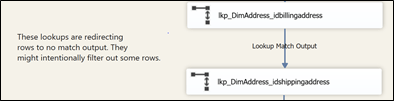
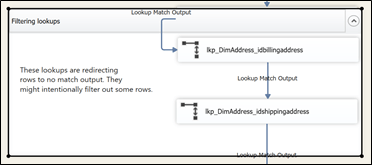
The obvious way to add comments or notes is to use annotations. Annotations can be used everywhere in a package, control flow, data flows and event handlers. There are efficient and easy to move around everywhere in the package.


Figure 1

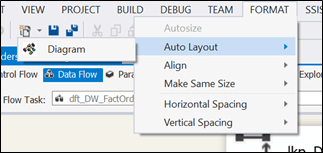
Now, one feature I like a lot in SSIS data flows is the ability to re-arrange data flows objects by using the “Format”à“Auto Layout”à“Diagram” command from the top menu. This align objects correctly most of the time.


Figure 2

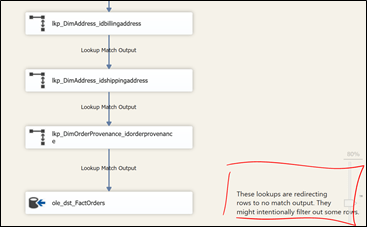
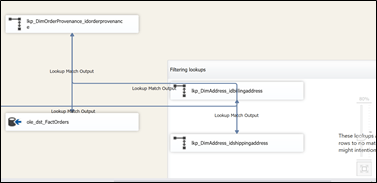
Now, when it comes to annotation, it doesn’t work properly. As you can see in Figure 3 below, the annotation has moved at the bottom of the package. If we had used many of these annotations, how can we know what transform(s) they belong to? As of now, there’s no way to tie an annotation to specific transforms. There is a connect issue that was closed in 2010 that relates to this issue.


Figure 3

Objects grouping

Since SSIS 2012, we now have the ability to group objects in a data flow. We can therefore group the annotation with the lookup and get something similar to Figure 1 above. This gives us something like Figure 4 below:


Figure 4

Then, using the “Format”à“Auto Layout”à“Diagram” command from the menu will also format the grouped objects but at least, they are still grouped. However, the group will now be moved to the bottom of the data flow.


Figure 5

So, we’re now back to square one basically.

Path annotation

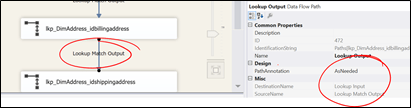
Another option we have and it might be useful is to use the annotation property of the various paths. The regular paths underneath the lookup have “Lookup Match Output” assigned by default.


Figure 6

This is due to the fact that (as shown in Figure 6), the “PathAnnotation” property is set to “AsNeeded” and by default, it displays the “SourceName” property. We can’t change the “SourceName” property, it is read only. But we can change the “Name” property though.

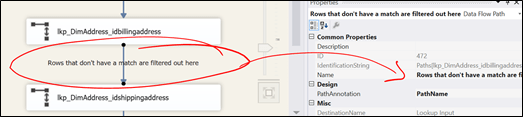
In Figure 7 below, I changed the “Name” property and set the “PathAnnotation” property to “Name”.


Figure 7

Now, instead of having “Lookup Match Output”, we have a more descriptive path annotation.


Objects “Description” property

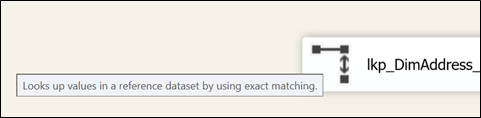
Another way of commenting our data flow transforms or control flow tasks is to use the “Description” property of every objects you want to comment on. To see the content of the “Description” property, we have to hover with over the object we want to see the description as shown in Figure 8.


Figure 8

By default, we have “Look up values in a reference dataset by using exact matching.”. We can change this using the property pane. Therefore, we’ll now see whatever we typed in the description of the object.


Figure 9

This might be useful to see what’s happening in the designer but the downside is that we can’t really know if a comment exists unless we hover the mouse over it.

To sum up

As useful as annotations are, they cannot be tied to a specific task or transform. So every time the task or transform moves, we have to carry the annotation manually.

Grouping helps but it takes significant space on the package.

Path annotation gives us more flexibility because we can see the annotation on the package, it is tied to it. Also, the name can be referred in the execution reports and log because we changed the name of the path. Still, it looks like a hack though.

Description is another option but are only visible when we hover the mouse on the object.

If Microsoft could let us tie annotation to a specific object, it would resolve many issues we talked in this post. Let’s hope they fixe it in future versions.

À ne pas manquer/Don’t miss PASS SQL Saturday 466 Montreal

Bonjour, ne manquez pas le SQL Saturday à Montréal le 21 novembre prochain ! Voici le lien pour vous y inscrire : http://www.sqlsaturday.com/466/eventhome.aspx

L’inscription est gratuite. Des frais de 10$ peuvent s’appliquer si vous désirez manger sur place

L’agenda est disponible en suivant ce lien : http://www.sqlsaturday.com/466/sessions/schedule.aspx

Hi, don’t miss the Montreal SQL Saturday this coming November 21st! Here is the link to register: http://www.sqlsaturday.com/466/eventhome.aspx

Registration is free, there’s an optional fee (10$) for the lunch if you’re interested to eat at the event location.

The schedule for the event is available there: http://www.sqlsaturday.com/466/sessions/schedule.aspx

Renewed as SQL Server MVP! I'm glad to be nominated MVP for the 7th time! @MVPAward @Microsoft

Use HCatalog in HDInsight

HCatalog add a lot of functionalities when we want to reuse schemas between processing tools (Pig, MapReduce). It greatly simplifies data consumption by storing the metastore of Hive tables. There’s a great documentation about using HCatalog there. Now, let’s look at this scenario. A developer created an external table in Hive and another wants to use it in Pig.

For example, a Pig developer want to use the HiveSampleTable. This is a sample table that is created when you create an HDInsight cluster. Without the HCatalog, the Pig developer would have to know where the data is stored and its structure. First thing first, she needs to instruct Pig to sue HCatalog using this switch when Pig is called:

C:\apps\dist\hadoop-2.4.0.2.1.15.1-1234>%pig_home%\bin\pig –useHCatalog;

The above command allows Pig to leverage the HCatalog.

Then, she can declare a variable that points to the HIveSampleTable in Hive.

SampleTable = LOAD ‘HiveSampleTable’ USING org.apache.hive.hcatalog.pig.HCatLoader();
2015-09-11 23:01:59,308 [main] INFO hive.metastore – Trying to connect to metastore with URI thrift://headnodehost:9083
2015-09-11 23:01:59,391 [main] INFO hive.metastore – Connected to metastore.
2015-09-11 23:02:00,058 [main] INFO org.apache.hadoop.conf.Configuration.deprecation – fs.default.name is deprecated. Instead, use fs.defaultFS

Now, if she calls a describe command, here is what she gets:

grunt> DESCRIBE SampleTable;
2015-09-11 23:03:58,829 [main] INFO org.apache.hadoop.conf.Configuration.deprecation – fs.default.name is deprecated. Instead, use fs.defaultFS
SampleTable: {clientid: chararray,querytime: chararray,market: chararray,deviceplatform: chararray,devicemake: chararray,devicemodel: chararray,state
le,sessionid: long,sessionpagevieworder: long}

We clearly see here that we can leverage the HCatalog metastore since Pig has recognized the underneath file and its structure. Moving forward, we can now interact with this variable like we would do without knowledge of the file location and schema.

Happy HDInsight coding! J


Azure Data Factory editor improvements

Azure Data Factory (ADF) is always improving. This post will talk about how the editor has improved since its introduction.

SHIFT+F10, get the help menu

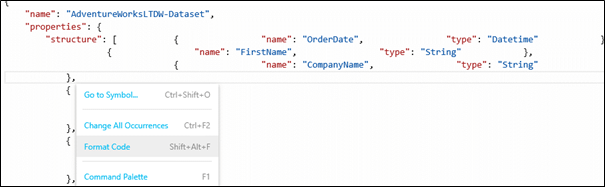
Pressing SHIFT+F10, the following menu appears.
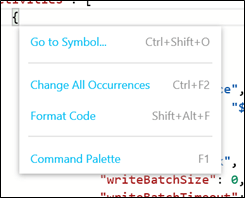
From the image above, you can see that several commands are available from this menu:

  • Go to Symbol: displays a list of elements in the JSON that you can access when selecting an element from the list.
  • Change All Occurrences: as it indicates, will change all occurrences of a specific element that you selected.
  • Format Code: this command will correct indentation and align the code correctly for you. If you close an artifact and re-open it, the code formatting is applied de facto.
  • Command Palette: this command will display the available commands in ADF. Even though the shortcut key is F1, it doesn’t have the same behavior as on-premises program; it will not open another browser or tab in the browser that displays the documentation. It only provides a list of commands.

Go to Symbol

This command allows you to navigate faster inside the JSON document. Press SHIFT+F10 and choose go to symbol from the menu.
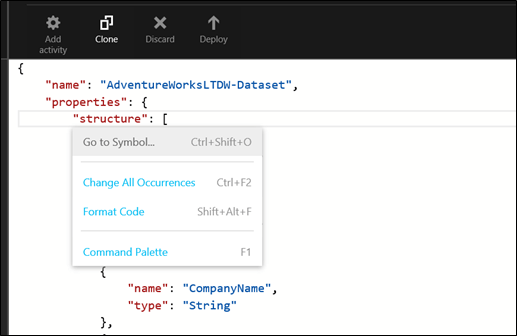
A list of objects present in your JSON document appears:

You can see in the upper right corner of the sub-menu how many symbols your document has. Now we’ll navigate to an element “Availability” in the document:
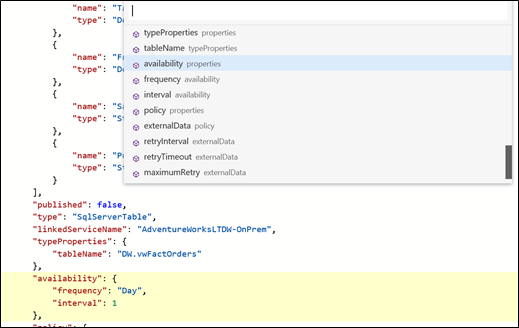
Using the keyboard down arrow, when we navigate in the list, the specific symbol is highlighted. Now, clicking on it with the mouse or pressing enter on the keyboard will move the cursor to the symbol:
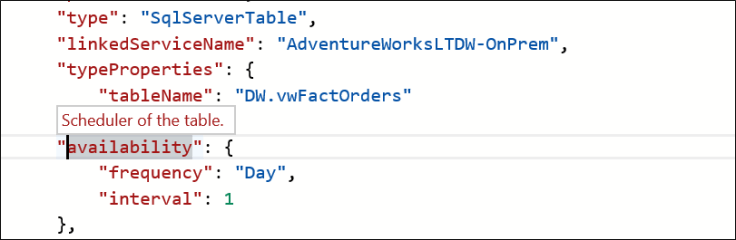
Notice that the symbol is selected and its definition or contextual help is displayed above it.


Change All Occurrences

This command allows you to rename all occurrences of a specific symbol.
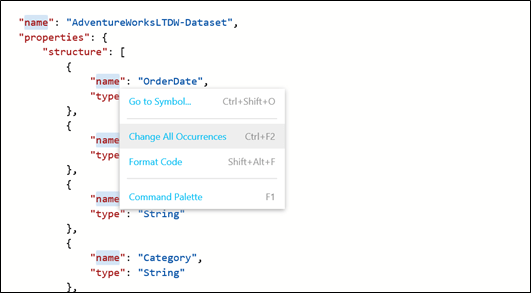
In the example below, we’ll change all “name” symbols to “test”. It doesn’t make sense to do it in the real life but I do it only to show you how the command would work.
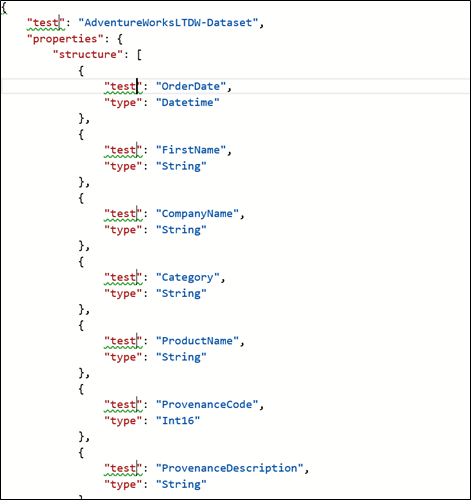
In a real world scenario, you would use this command to rename multiple occurrences of structure element’s name.

Format Code

This command I really simple, it will reset the code formatting to make it more readable. For example, let’s say we mess a lot with our structure elements.
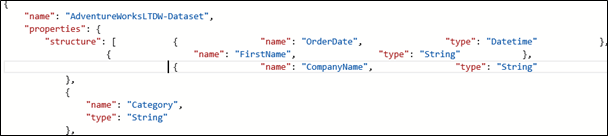
Using “Format Code” command will re-format the JSON structure:


Command Palette

This feature is a kind of help since it shows you all available commands of the editor.
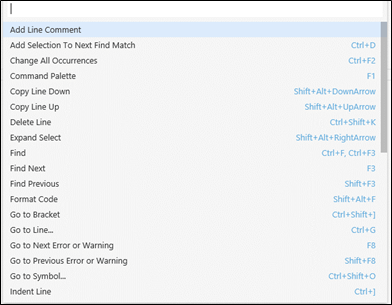
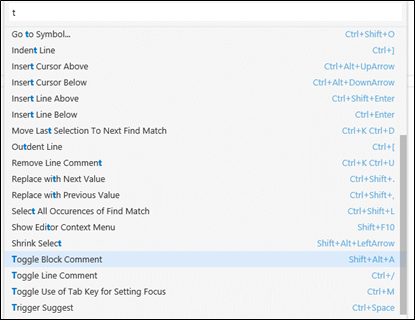
As you can see, there’s a textbox at the top that allows you to search for specific command. I typed the letter t and all commands that contained that letter are now displayed.
IntelliSense

Now, let’s see how we can use intelliSence in ADF. Like any .Net language, intellisense can be triggered by typing CTRL+Spacebar. For example, when we type structures in datasets using the ADF editor, we simply have to type: na without completing the word to “name”. Press on TAB and voila, itelliSense corrects the tag for us.
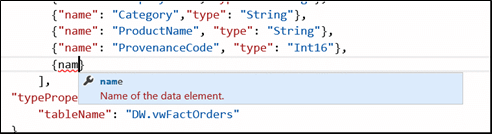
When it comes to the datatypes, starting to type the name of the datatype will make a list of datatypes containing what we have just started to type.
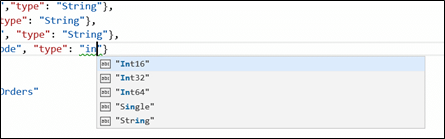
So now it’s easier to create our structures in datasets. Structures are important for several reasons and I’ll explain them in a future post.

Validation and help

The editor also validates as we are typing. For example, we need to have a type in a structure of a dataset. Failure to provide one will lead to error when we’ll try to publish the dataset. In the image below, I highlighted the uncompleted structure element.

In the case above, it’s clear that we have to provide a valid data type for the element.


Another example is when external policies are used in the dataset. If one of the policies is not correctly provided, ADF editor will show a warning (green underline) where there’s missing or non-conform data.


As shown in the above screen clip, we are provided of what the property should look like and the description of the property.

To sum up

Azure Data Factory editor has gone a long way since i’s introduction at the end of February. There are remaining caveats like the fact that intelliSense won’t list user created objects in various artifacts. For example, in a pipeline, it would be nice that the input or output of an activity:
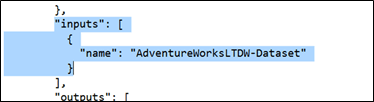
In the above code, I highlighted what I would like the editor integrate in intelliSense; the capability to list available datasets (in that case AdventureWorksLTDW-Dataset). We don’t have this possibility for the moment. Probably in the future though. Anyway, I hope so J.

Anyway, I’m sure that everyone that uses the editor will be more productive with these enhancements.

Blog at WordPress.com.

Up ↑